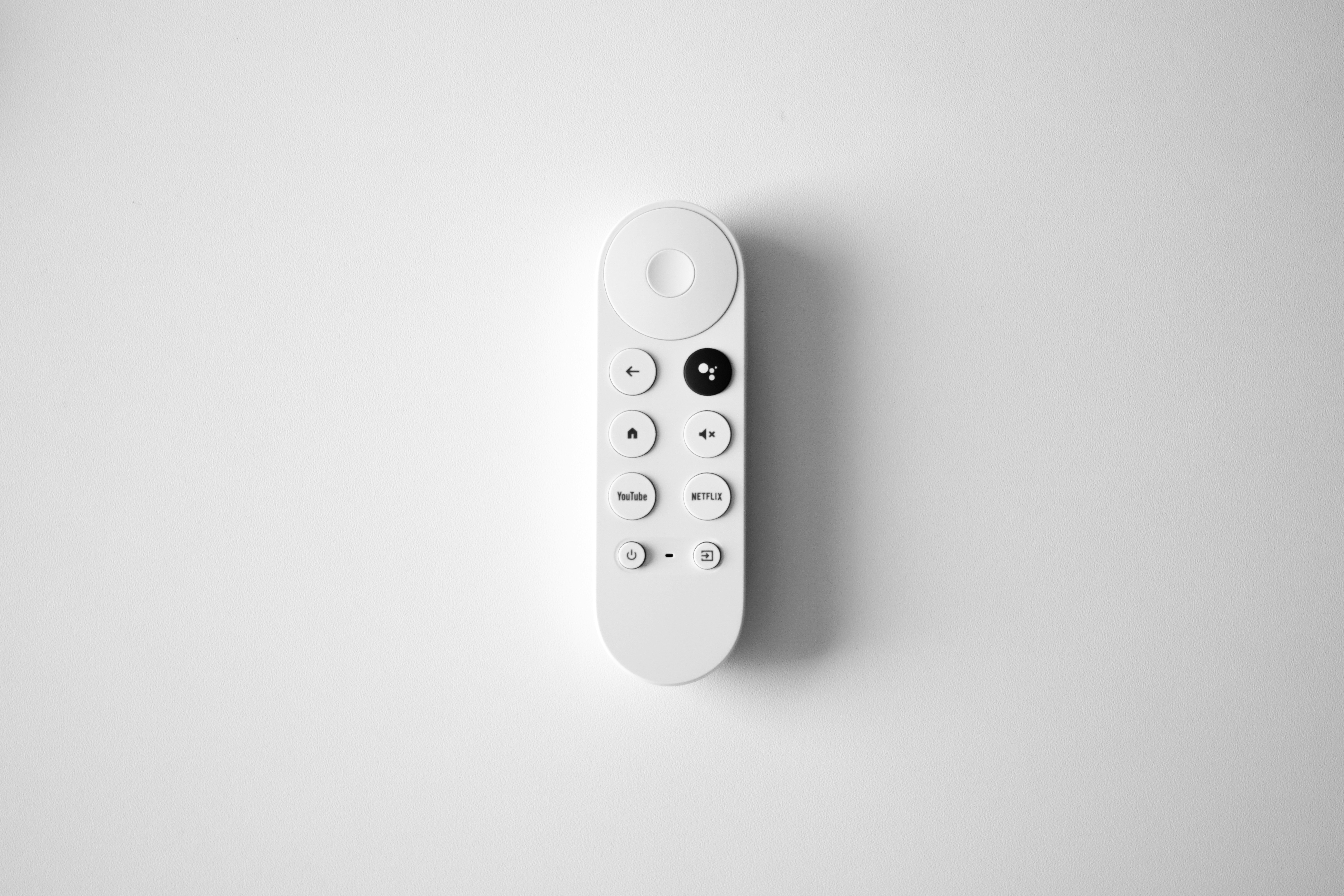
IPTV on Android TV / Google TV in 2026: Setup Guide, Best Apps, and Buffering Fixes
Android TV and Google TV devices are some of the easiest ways to run IPTV because you get a full app ecosystem (Google Play), better playback controls than many Smart TV stores, and more troubleshooting options when something goes wrong.
This guide shows a clean IPTV setup for Android TV / Google TV in 2026—plus the settings that most often fix buffering, stutter, or channels that refuse to load.
What you need before you start
Have these ready so setup takes 10–15 minutes:
- A stable internet connection (HD typically needs 10+ Mbps; 4K often needs 25+ Mbps).
- An Android TV / Google TV device:
- Built-in TV OS (Sony / Philips / TCL models), or
- A streaming device (Chromecast with Google TV, NVIDIA Shield, Xiaomi TV Box, etc.).
- Your IPTV credentials from your provider:
- Xtream Codes API (server URL, username, password), or
- M3U playlist URL (and optionally an EPG/XMLTV URL).
- Enough free storage for the app and caching (especially if you use VOD or catch-up).
If your provider offers both Xtream and M3U, Xtream Codes is usually the smoother option because it often pulls channels, VOD, and categories automatically.
Best IPTV apps for Android TV / Google TV
Android TV gives you more choices than most Smart TV app stores, but it’s still worth sticking to reputable IPTV players with consistent updates and solid EPG support.
Popular options include:
- TiviMate: Widely considered the best Android TV IPTV experience for heavy EPG users, multiple playlists, and customization.
- iBO Player: A strong “set it and forget it” option with a clean UI and cross-device consistency.
- IPTV Smarters: Familiar layout and a straightforward Xtream login flow, especially for beginners.
- OTT Navigator: Great if you manage multiple playlists and want flexible sorting and filtering.
Which app is “best” depends on your priorities: a classic TV guide (EPG), fast zapping, multi-playlist support, or a VOD-first interface.
Step-by-step: install and set up IPTV on Android TV / Google TV
1) Install your IPTV player from Google Play
- On your Android TV, open Google Play Store.
- Search for your preferred IPTV app (for example, TiviMate or iBO Player).
- Install the app and open it.
If the app isn’t available in your region, choose another reputable option with similar features. Availability can vary by device, country, and store policies.
2) Add your IPTV subscription (Xtream Codes or M3U)
Most IPTV apps support at least one of these login methods:
- Xtream Codes API: Enter your server URL, username, and password. The app typically loads channels and VOD automatically.
- M3U playlist URL: Paste the playlist link. Add EPG separately if your provider supplied an XMLTV URL.
After saving credentials, give the app time for the first sync. Large playlists can take a few minutes to populate fully.
3) Enable EPG (TV Guide) for a cable-like experience
If your provider gives an EPG link:
- Open the app’s EPG/Guide settings.
- Add your XMLTV/EPG URL (if provided).
- Trigger a refresh and wait for guide data to load.
If you see empty program names or wrong time slots, it’s usually one of these:
- The EPG URL is incorrect or expired.
- The first sync hasn’t finished.
- The provider’s EPG doesn’t match the channel IDs in your playlist.
Android TV settings that reduce buffering and playback issues
A lot of “IPTV problems” come down to device performance, Wi‑Fi stability, or player settings. These changes help most Android TV setups immediately.
Prefer Ethernet (or strong 5 GHz Wi‑Fi)
If your Android TV box supports Ethernet and your router is close, wired internet is usually the most stable way to stream IPTV.
If you use Wi‑Fi:
- Prefer 5 GHz over 2.4 GHz.
- Keep your router in an open area (not inside a cabinet).
- Avoid placing the TV/box behind thick walls or metal TV stands.
- If buffering spikes at certain times, restart your router and retest.
Close heavy background apps and free storage
Android TV boxes can slow down when storage is almost full or when background apps keep running.
Try:
- Settings → Apps → Force stop apps you don’t need.
- Uninstall unused apps.
- Keep at least 1–2 GB free storage for smooth caching and updates.
Use hardware decoding (when available)
Many IPTV players let you switch between software and hardware decoding. If you see stutter, audio desync, or dropped frames, hardware decoding often helps on Android TV.
If playback gets worse with hardware decoding, switch back to software and retest. Some streams behave differently depending on codec and device chipset.
Match the stream quality to your network
If your provider offers multiple qualities or sources, test these scenarios:
- 4K stream on Wi‑Fi vs Ethernet
- HD stream vs 4K stream
- A different server/source offered by the provider
If HD plays perfectly but 4K buffers, you likely need more stable bandwidth, not a different IPTV app.
Practical tips for a better Android TV IPTV experience
Tune your UI for faster channel surfing
If your player supports it:
- Enable recent channels and favorites.
- Use EPG view modes that match your habits (grid vs list).
- Disable unnecessary animations if your device feels sluggish.
Consider a dedicated streaming device for older Smart TVs
If your Smart TV’s built-in Android TV feels slow, a separate device like Chromecast with Google TV or NVIDIA Shield often improves responsiveness and reduces “mystery buffering” caused by weak TV hardware.
Keep your IPTV details private
Treat your Xtream/M3U credentials like a password:
- Don’t share your playlist link publicly.
- Avoid unknown “free IPTV” apps that ask for extra permissions.
- If your provider supports device limits, don’t constantly switch devices in a short period (it can trigger temporary blocks).
Common Android TV IPTV problems (and fixes)
Channels won’t load or the list is empty
Work through this checklist:
- Confirm your subscription is active with the provider.
- Re-check the server URL, username, and password (copy/paste carefully).
- If you use M3U, test the playlist URL in a browser on the same network.
- Force close the IPTV app and reopen it.
- Restart the Android TV device (not just the app).
If nothing works, ask your provider if there is an alternative server URL or if your IP is temporarily blocked.
EPG shows “No information” on most channels
- Verify the EPG/XMLTV URL is correct.
- Wait for the first sync to finish (large EPGs can take time).
- Clear EPG cache (if your app offers it) and refresh again.
If only some channels have guide data, it may be a provider mapping issue rather than a device problem.
Buffering is worse in the evening
Even a good home network can struggle during peak hours if your ISP route is congested or the IPTV provider is overloaded.
Try:
- Test the same channel on another device on the same Wi‑Fi (phone or laptop).
- Switch to a lower bitrate stream (if the provider offers one).
- Use Ethernet if you were on Wi‑Fi.
If buffering happens across multiple devices at the same time, it’s usually network or provider capacity—changing apps rarely fixes that.
Playback stutters or audio drifts out of sync
- Toggle hardware decoding on/off.
- Try a different built-in player engine if your IPTV app offers one.
- Lower the stream quality for testing.
- Reboot the device to clear memory pressure.
Quick checklist: Android TV / Google TV IPTV setup done right
- Install a reputable IPTV app (TiviMate, iBO Player, IPTV Smarters, etc.).
- Use Xtream Codes if available for the easiest setup.
- Add EPG/XMLTV for a full TV guide experience.
- Prefer Ethernet (or strong 5 GHz Wi‑Fi).
- Keep storage free and close heavy background apps.
- If issues appear suddenly, restart the device and re-check credentials.
With the right player and a few stability settings, Android TV / Google TV becomes one of the most reliable ways to enjoy IPTV—fast, customizable, and easy to troubleshoot.